
9.28.2026
‘Maybe Someday’ Is Now: Pursue Your Full Potential Through the 2026 Healthcare Education Fair on Oct. 22

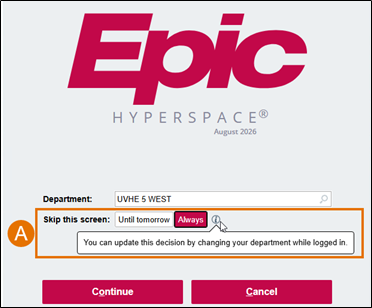
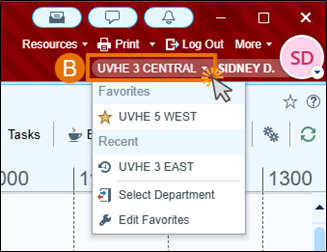
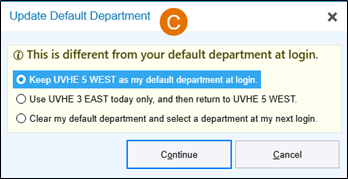
Health Information Technology (HIT) team will implement the next Epic Upgrade across all UVA Health entities on Sunday, Nov 1. This routine upgrade includes enhanced patient lookup, simplified tab workflows, customization of Hyperspace notifications, timesaving login options, and a unique code status for Periop patients.
Epic releases comprehensive updates to the Electronic Health Record (EHR) system that incorporates team member feedback to improve functionality, optimize workflows, and introduce new features. These upgrades help ensure our system remains efficient, secure, and aligned with the evolving needs of care delivery.
Here’s a closer look at the top five changes arriving with this upgrade:
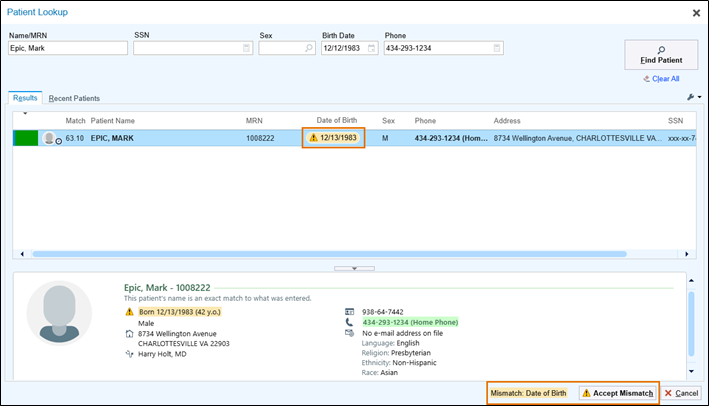
If a Patient Lookup search result has demographics that don't match what you searched for, the mismatch is highlighted and has a caution icon, so it's easy to see the result isn't an exact match. This allows you to easily identify demographic differences before selecting a patient, reducing the risk of selecting the wrong patient.
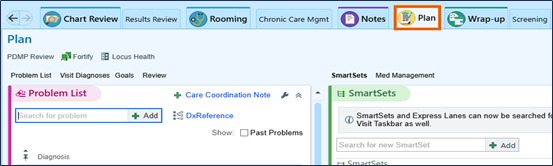
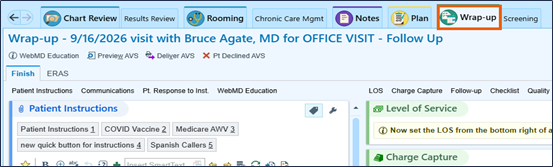
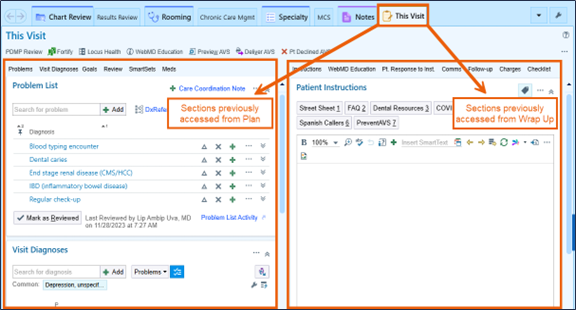
The Plan and Wrap-Up tabs have been combined into a single This Visit tab to simplify the outpatient visit workspace. All sections previously appearing in the Plan or Wrap-Up tabs now appear on the This Visit tab with the Plan sections located in the left column and the Wrap Up sections in the right column.
Note: If you have the sidebar open, the left and right columns may combine. You can modify the navigator layout to ensure the sections you use most appear at the top.
Before:
After:
Review and adjust your Hyperspace notifications by Category in the Notifications Settings activity to easily adjust non-critical Hyperspace notifications.
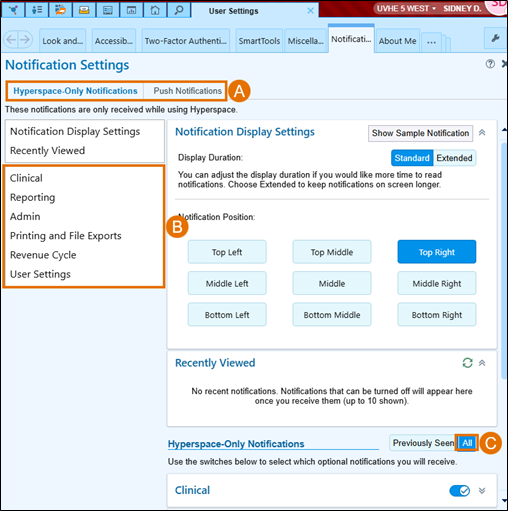
Note: Critical Hyperspace notifications cannot be turned off. Notifications marked as Important or Very Important can be turned off after acknowledging a warning dialog.
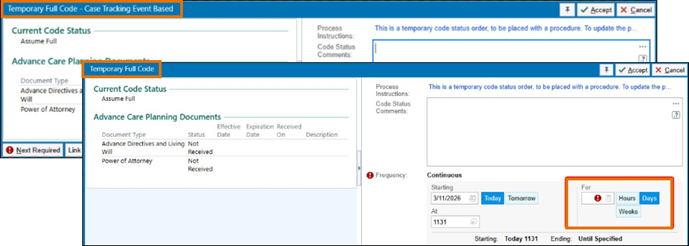
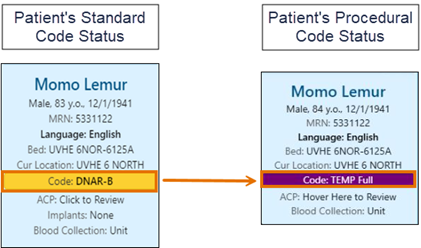
A patient with a DNAR order may need to be a Full Code temporarily during a procedure. A new procedural order covers that window. The patient’s usual code status is reinstated once the defined timeframe is completed.
Upgrade materials will be available on Oct. 18. Look for the "What's New" pop-up notifications to appear in Epic. They will:
For additional UVA Health-specific upgrade resources, search "Upgrade" in the Epic Learning Library.