Epic Upgrade Coming May 20: A Look at the Top Five Changes
The Health Information Technology (HIT) team will implement the next Epic Upgrade across all UVA Health entities Wednesday, May 20. This routine upgrade includes new features and visual changes to create a more user-friendly interface.
Why Are We Upgrading?
Epic releases comprehensive updates to the Electronic Health Record (EHR) system that incorporate team member feedback to improve functionality, optimize workflows, and introduce new features. These upgrades help ensure our system remains efficient, secure, and aligned with the evolving needs of care delivery.
What to Expect
Upgrade Date: Wednesday, May 20
Downtime: Estimated at 1 hour, from 1-2 a.m.
Epic Version: vFeb2026
Time to Prepare: Less than 30 minutes on average, depending on role.
Here’s a closer look at the top five changes arriving with this upgrade.
“What’s New”
“What’s New” is a new feature for UVA Health, and it serves as the central place to access training and learn about the upgrade. This personalized Epic site highlights changes based on how each team member uses Epic Hyperspace, to provide the most relevant updates.
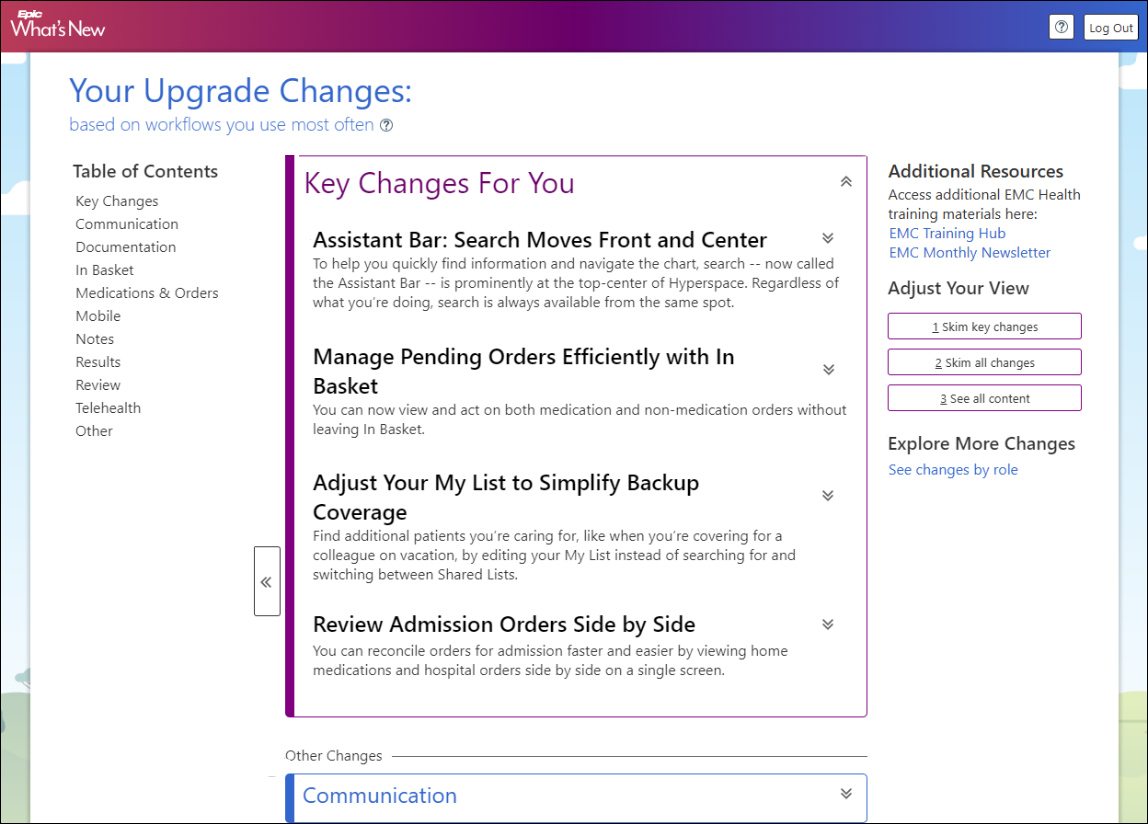
- The site will have a table of contents to clearly define change categories and the view style is adjustable.
- It will also have links to UVA’s Epic Learning Library (ELL) to access application specific supplemental material, the Upgrade Provider Resources page, and the Unified Communication page.
- Team members without enough usage history to create a custom view in “What’s New” will be able to select a role to tailor the experience.
- Starting May 8, a “What’s New” notification will appear on the Hyperspace home workspace.
- Team members will receive a limited number of reminders on their home workspace before and after the upgrade, until the “What’s New” notification is reviewed.
- “What’s New” will be accessible from the notification, Megaphone icon, Assistant bar, and Epic Help menu.
- To learn more about the “What’s New” feature, access the “What’s New” page on the ELL.
Text Autocompletion
Text autocompletion will help team members spend less time typing in larger text fields, including notes, letters, In Basket messages, and secure chat.
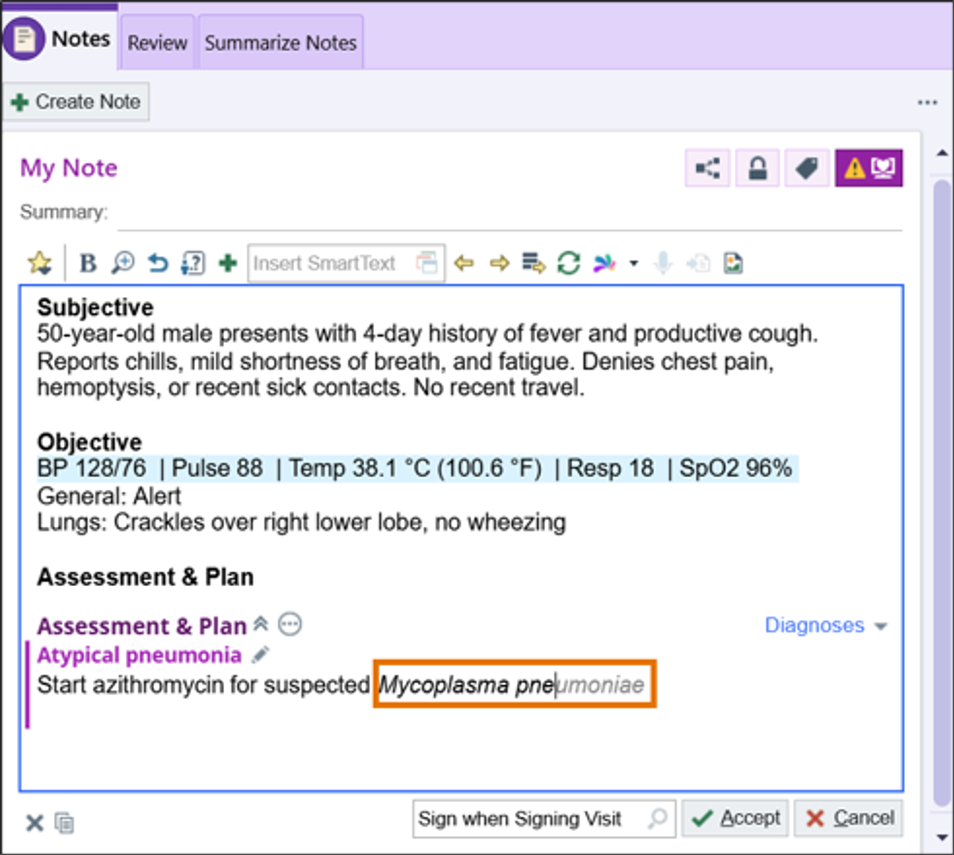
- As team members type, Epic will offer suggested text to support faster documentation.
- This feature improves efficiency but does not provide clinical guidance or decision support.
- This feature can be turned off using SmartTool Formatting Settings.
Hover Bubbles and Shared Filters
Workqueues will have more flexibility and visibility.
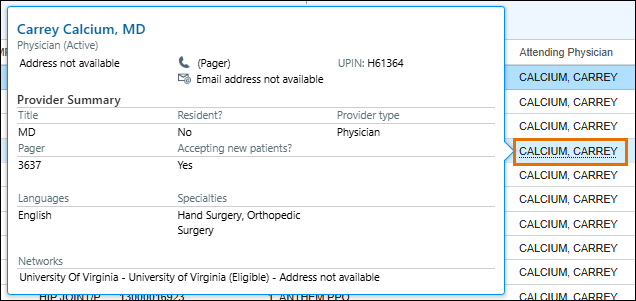
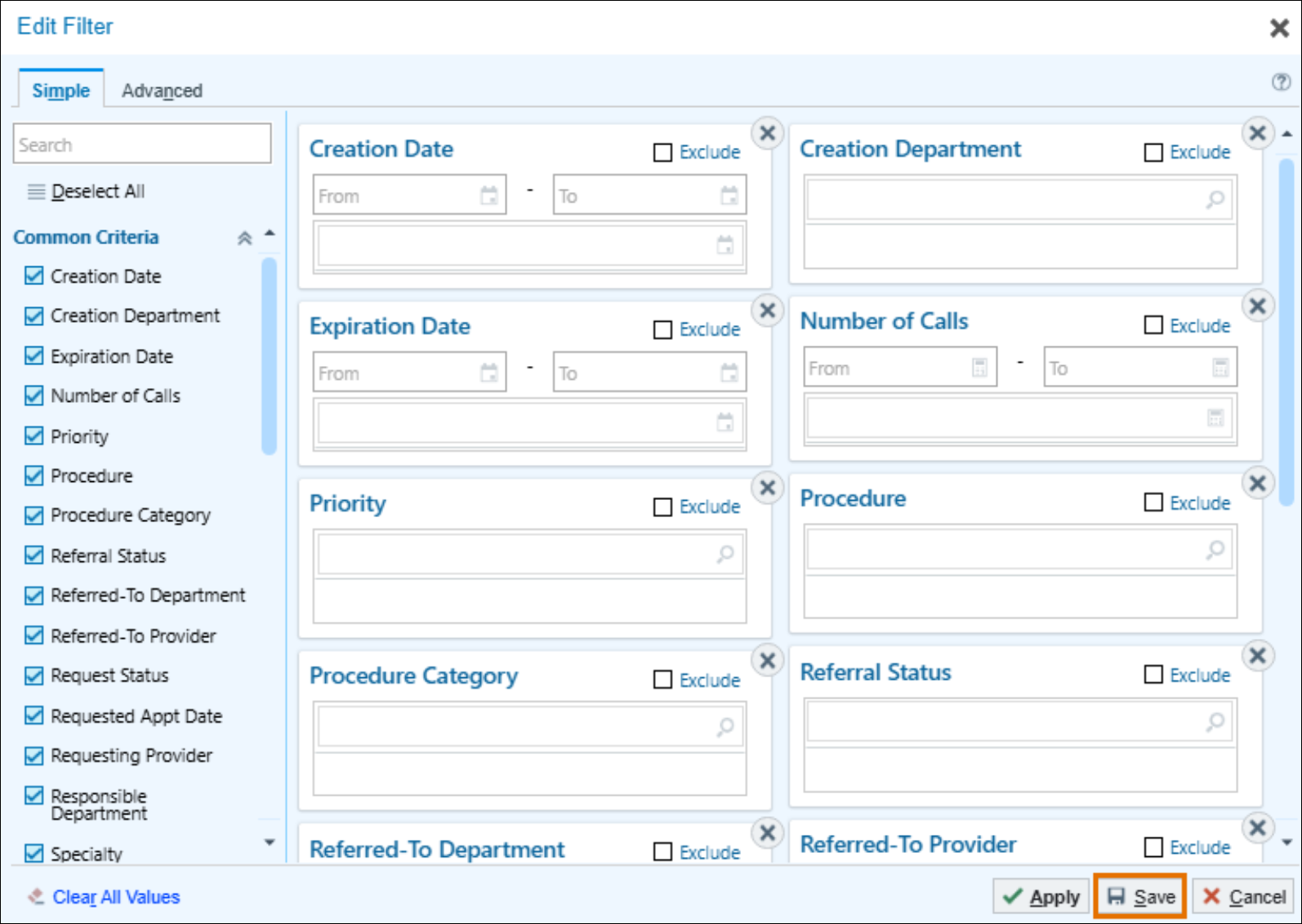
- Hover bubbles display helpful details, such as provider demographics, in select columns.
- Team members can also save, search, and share workqueue filters, making it easier to reuse and standardize views across teams.
Cleaner, More Personalized Screens
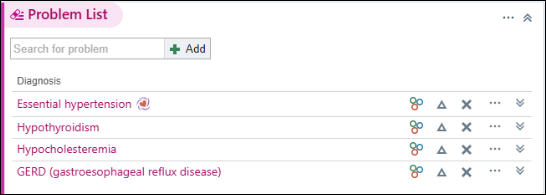
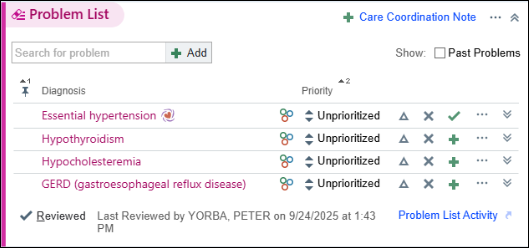
Epic allows team members to simplify office visit and telephone call workspaces, along with select activities, to show only the fields and buttons they actually use. Team members can select Personalize the Screen from any Dots menu to customize their view or, once the system evaluates how you use these activities, let the system do it for you.
Unified Communications: Epic Secure Chat and Sign In
Epic Secure Chat is going live across all UVA Health enterprises, allowing real-time communication within Epic.
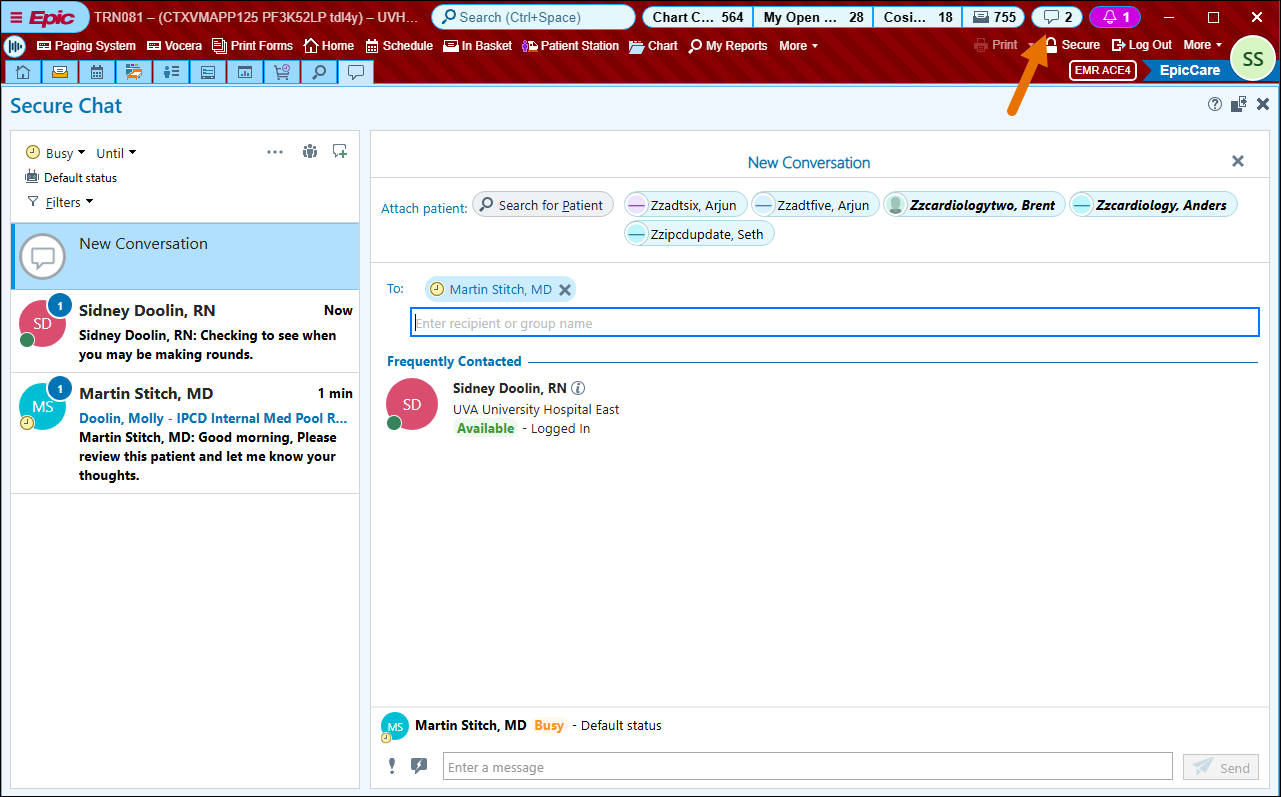
- Secure Chat features individual or group messages for quick collaboration and patient charts can be attached, when appropriate.
- Secure Chat will be available on desktop and Epic mobile apps, including Haiku, Canto, and Rover.
- Visit Connect for Unified Communications information and FAQs.
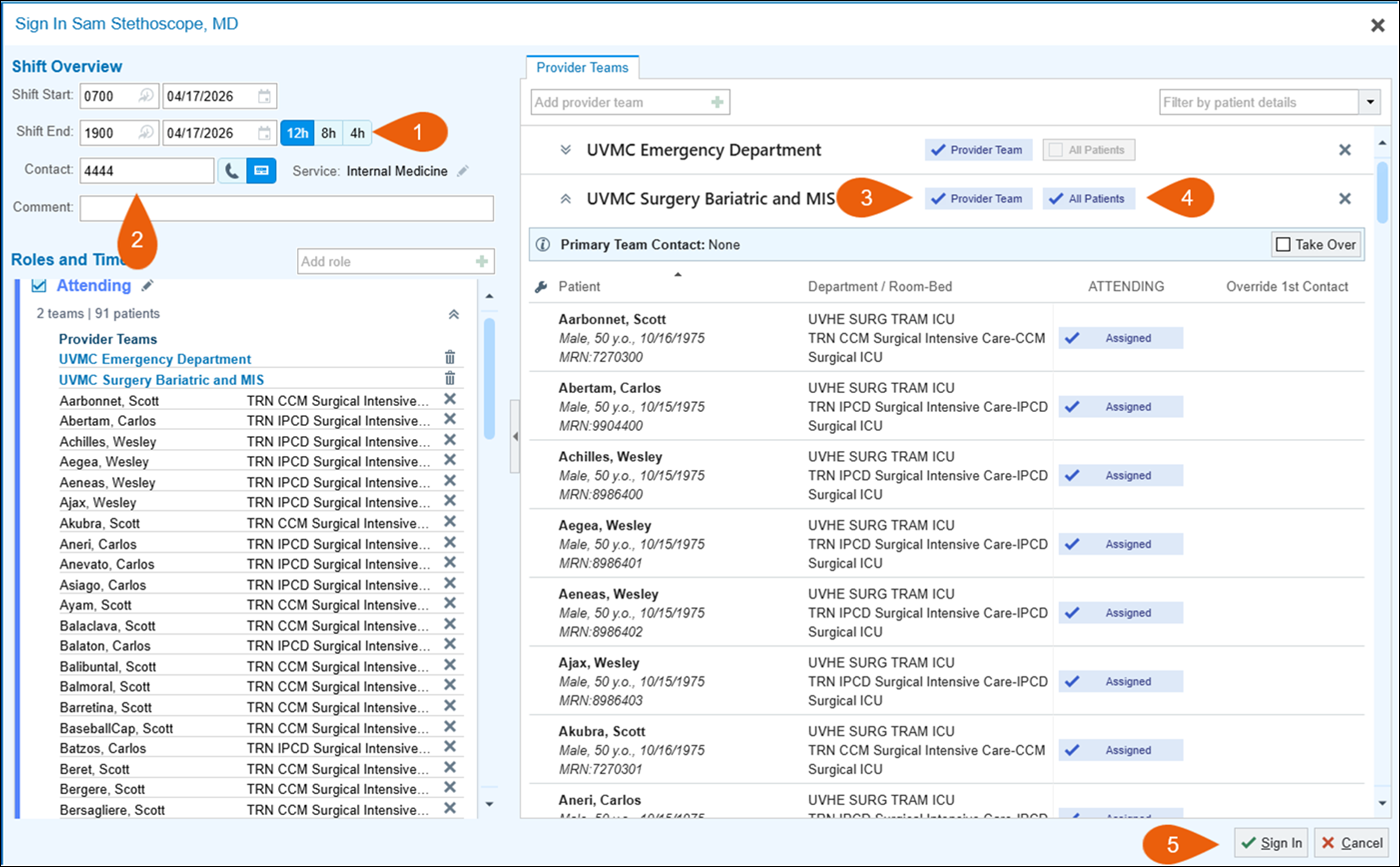
Sign In ensures care team members are clearly identified for each patient, team, or area. It also allows staff to associate with a Provider Team when they are not listed on the On-Call schedule.
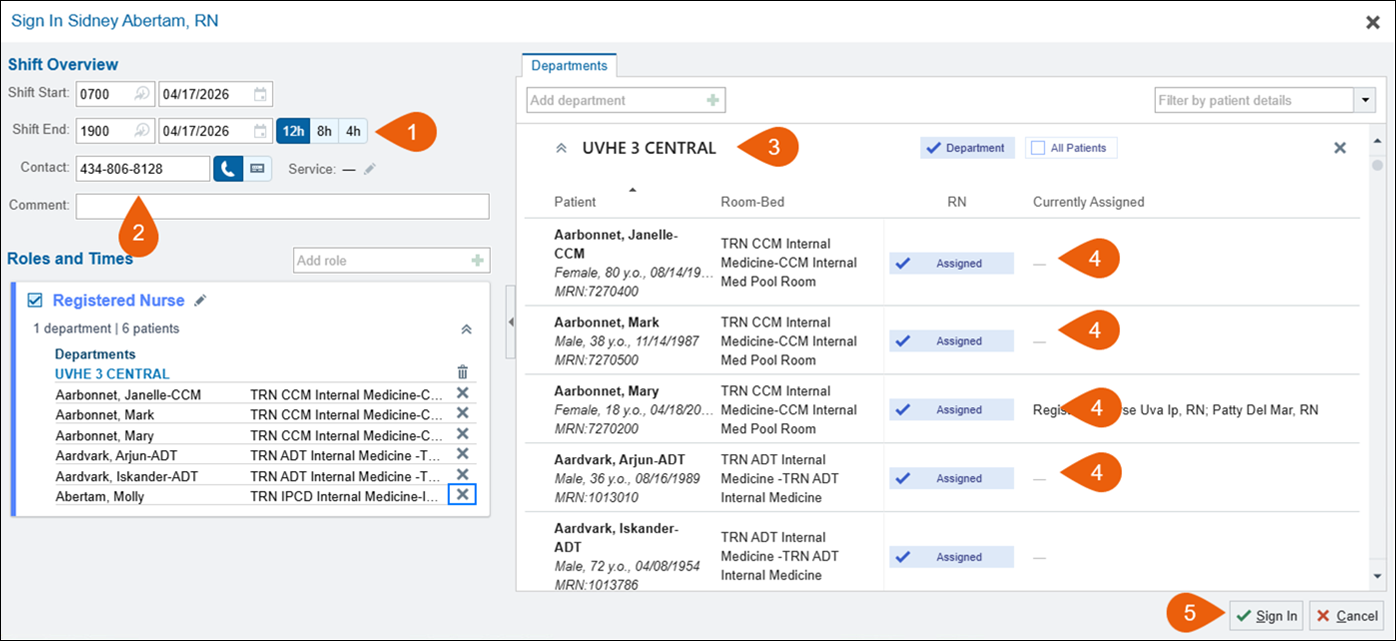
- Inpatient Sign In will be a required step to automate multiple Secure Chat functions.
- Improves patient safety by clearly identifying team members and roles
- Allows automation of availability and improves targeting of alerts
- Sign In to the appropriate Provider Team or Department:
- Choose your shift length.
- Update your contact number.
- Pick your department or provider team.
- Choose your patients.
- Sign in.
Training resources and tip sheets are available on the Unified Communications ELL page.

Latest News